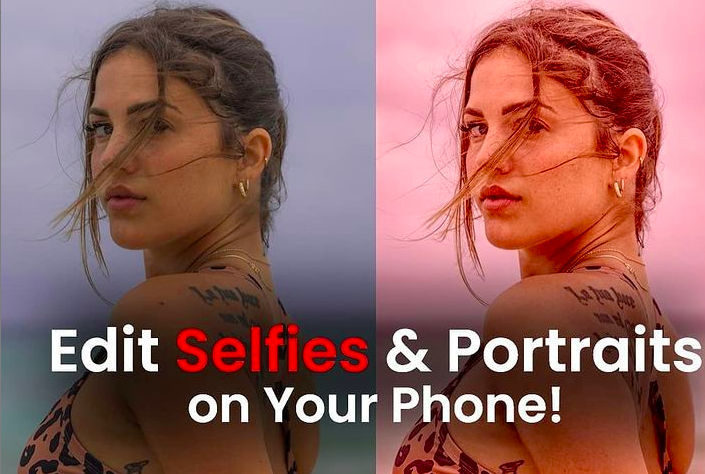
Let’s teach you how to polish your images or selfies on my favorite phone editing app. See the video below.
I recommend the app Snapspeed; it’s free and available on both Apple and Android.
Go here if you are looking for tips on how to take a good sefie.
Download Snapspeed from the Google or Apple
Snapseed Portrait Editing Video
-
Once your Image is open in Snapspeed, click tools in the bottom right or filters and start tweaking.
-
Crop the image first…for Insta square or 5/4. Try and crop out anything that detracts from the story. Click the checkmark.
-
Next, click on Tools, then Details.
Slide up and down to see options in this menu. Slide right or left to increase or decrease the amount.
Sharpening – I turn up sharpening relatively high and see how it affects the Image.
Structure – This makes your landscapes pop (not suitable for skin – make it look rough)
Click checkmark.
- Tool then Tunes Image
Adjust brightness, contrast, saturation, ambiance, highlights, shadows, and warmth. I typically mess with all of these.
- Selective
This allows you to edit a section of the photo at a time. Click the plus to set the size of your adjustment area. Then slide up and down for options.
- Play around and have fun. When you are satisfied, click done, and it saves a new version of this photo.
Models Instagram @__lexiann__If you need a photographer in Playacar, Playa del Carmen, Tulum, or Cancun, please give us a WhatsApp at +1 (713) 578 0080 or an email. We would love to earn your business!